What Kiryo Actually Does: A Day in the Life of Rental Management Software
Most rental management software pages tell you what the tool could do. This one shows you what it actually looks like when you use it. If you rent out physical items, tables and chairs, party tents, tools, cameras, event gear, here is a walkthrough of how Kiryo works, screen by screen, in the order you'd encounter each one during a normal day.
The starting point: a garage, a phone, and too many tabs
Picture a solo operator with 30 folding tables, 100 chairs, a handful of tents, and a speaker system, all stored in a garage. Bookings live in a spreadsheet. Deposit tracking is a notebook. Availability checks mean scrolling through rows and doing mental math while a customer waits on the phone. Kiryo replaces that patchwork with one place to manage the whole operation.
Morning check-in: the dashboard
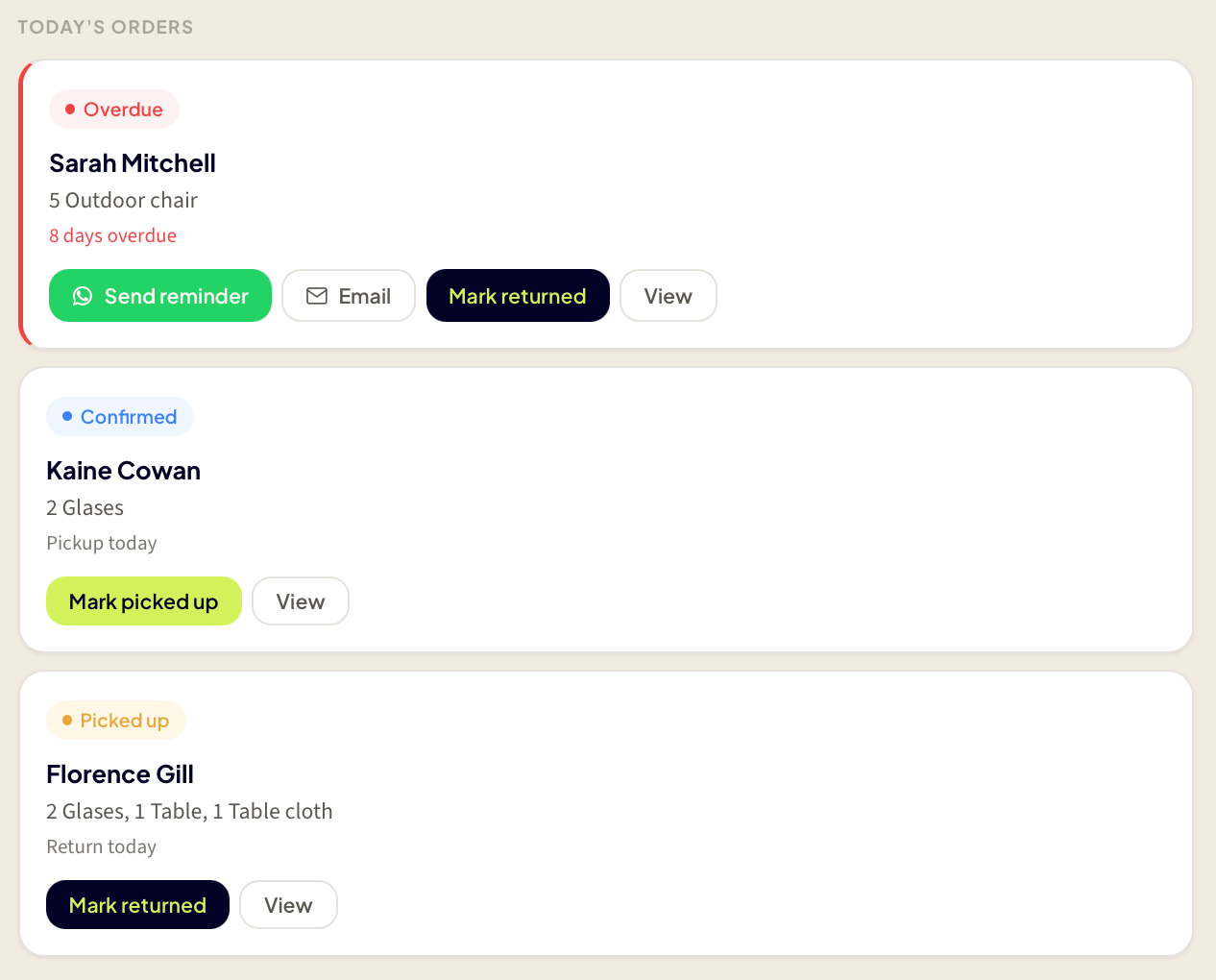
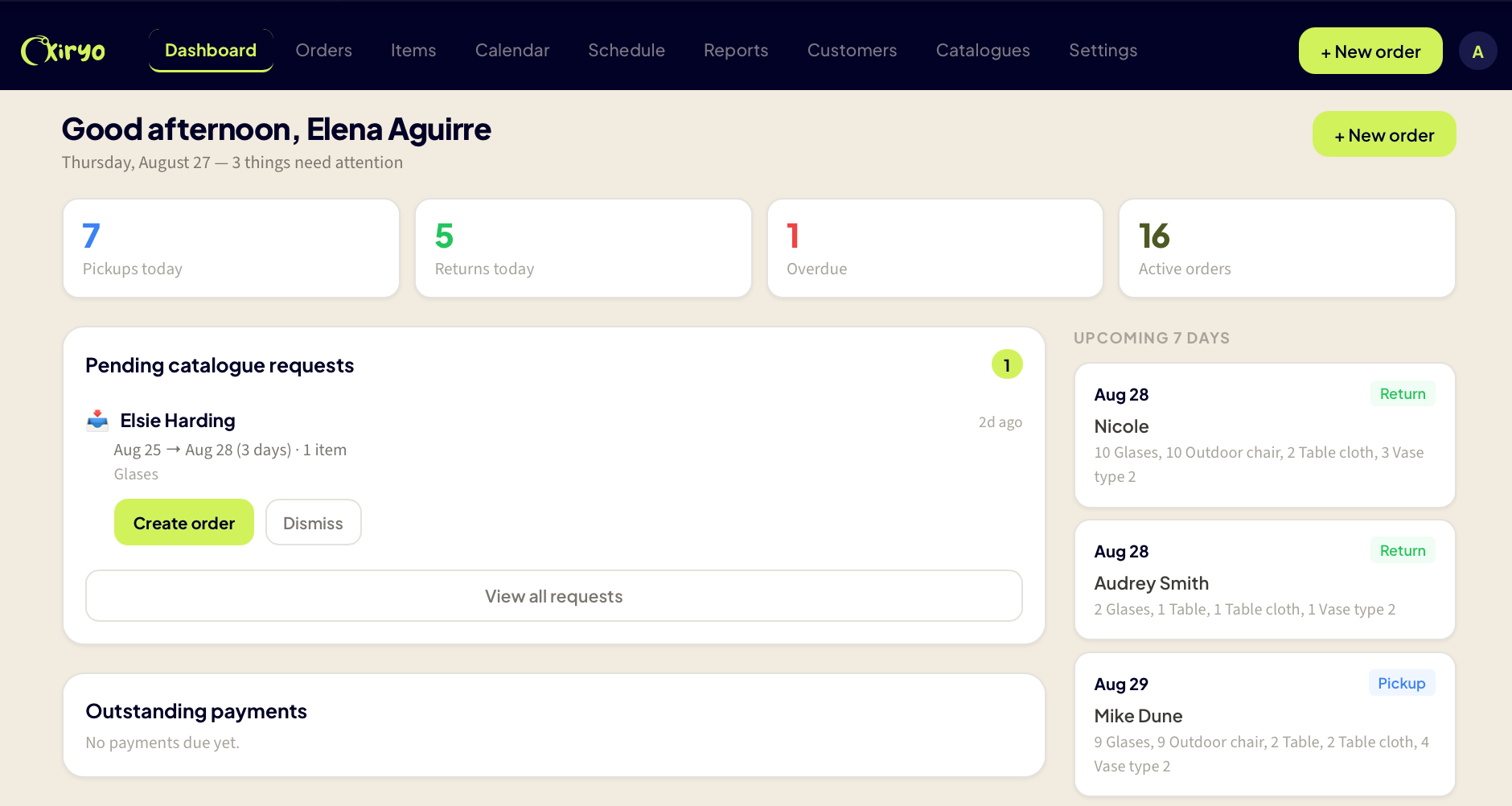
This is the first screen you see when you open the app. It answers the question every operator asks each morning: what needs my attention today?
Overdue orders surface at the top in red. Below that, today's confirmed pickups and today's expected returns. No spreadsheet scrolling, no opening five tabs to piece together what's happening.
Three more cards appear only when they're relevant. Outstanding balances shows customers who still owe money, sorted by how overdue the balance is. Tomorrow's schedule lists deliveries and collections for the next day with addresses and time windows. Pending catalogue requests shows booking inquiries from your public catalogue page, each with a button to turn the request into a real order. If none of these apply to you yet, the cards stay hidden.
Taking a booking: the new order flow
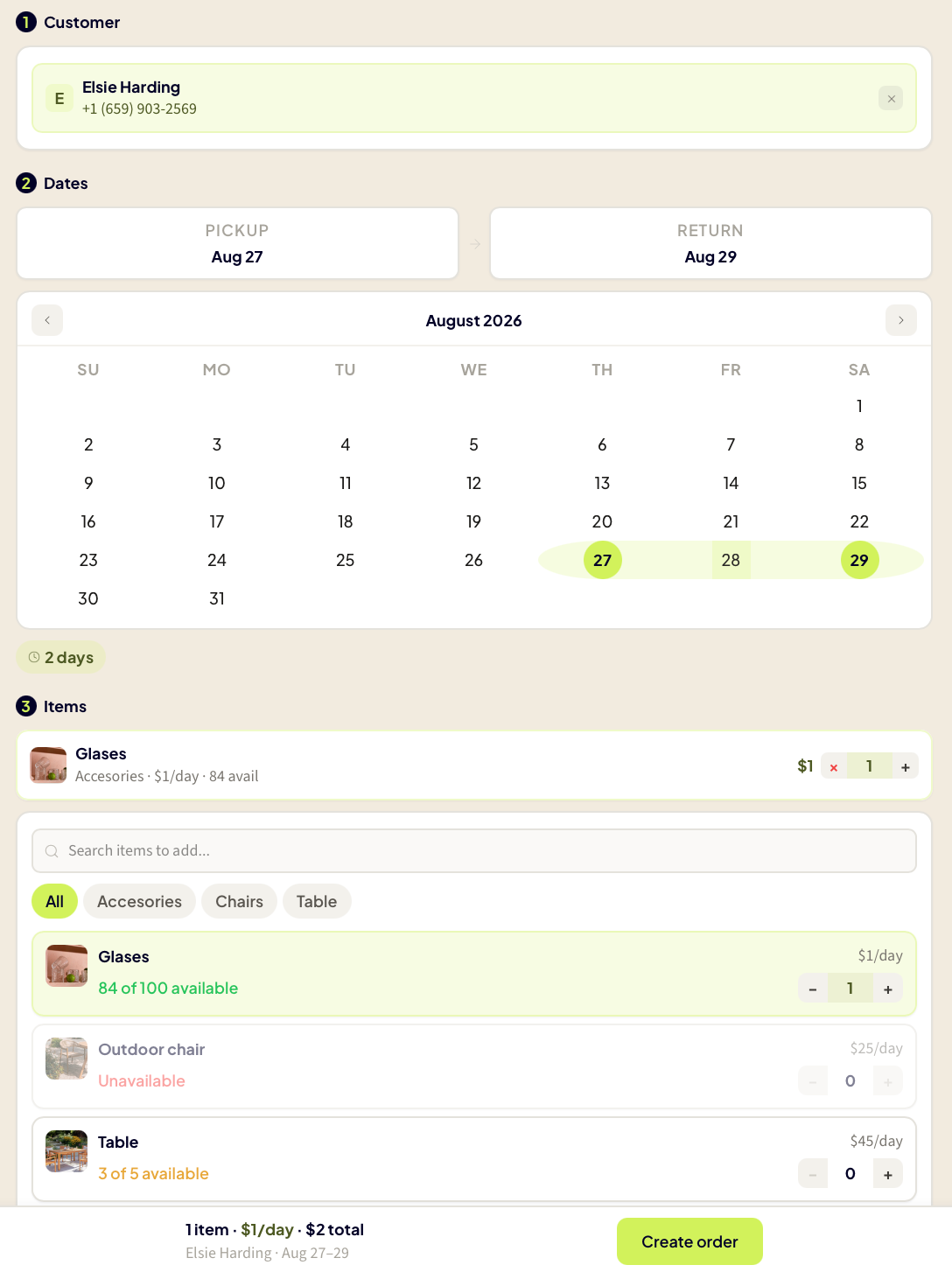
When a customer calls to book equipment, you tap the "+" button and land on a single scrolling form. Pick the customer (or create one inline), set the pickup and return dates, add items, and fill in details.
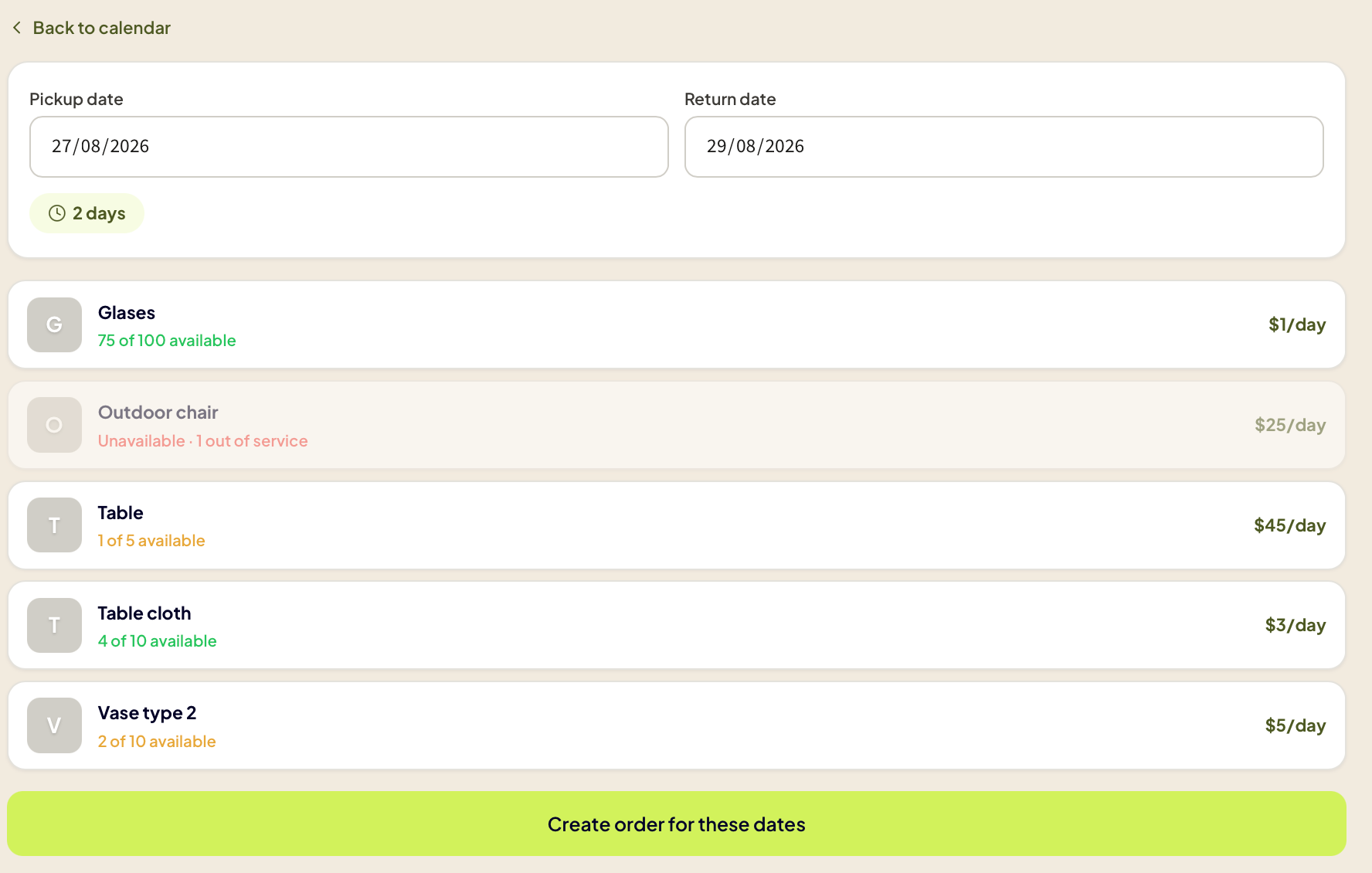
The items section is where Kiryo earns its keep. Once you set the dates, every item in your inventory shows its real availability for that exact range. If you own 20 chairs and 8 are already booked, you see "12 available." No guessing, no cross-referencing a calendar. You add items, adjust quantities, and the sticky footer updates with a running total: items, daily subtotal, and full-period price.
You can set a deposit amount, add delivery details if you're dropping the gear off yourself, and attach internal notes. If the selected customer has been flagged as "Careful" or "Do not rent" based on a previous experience, a warning appears with your own notes about why. It never blocks the order, just makes sure you see it.
Checking what's actually available: the calendar
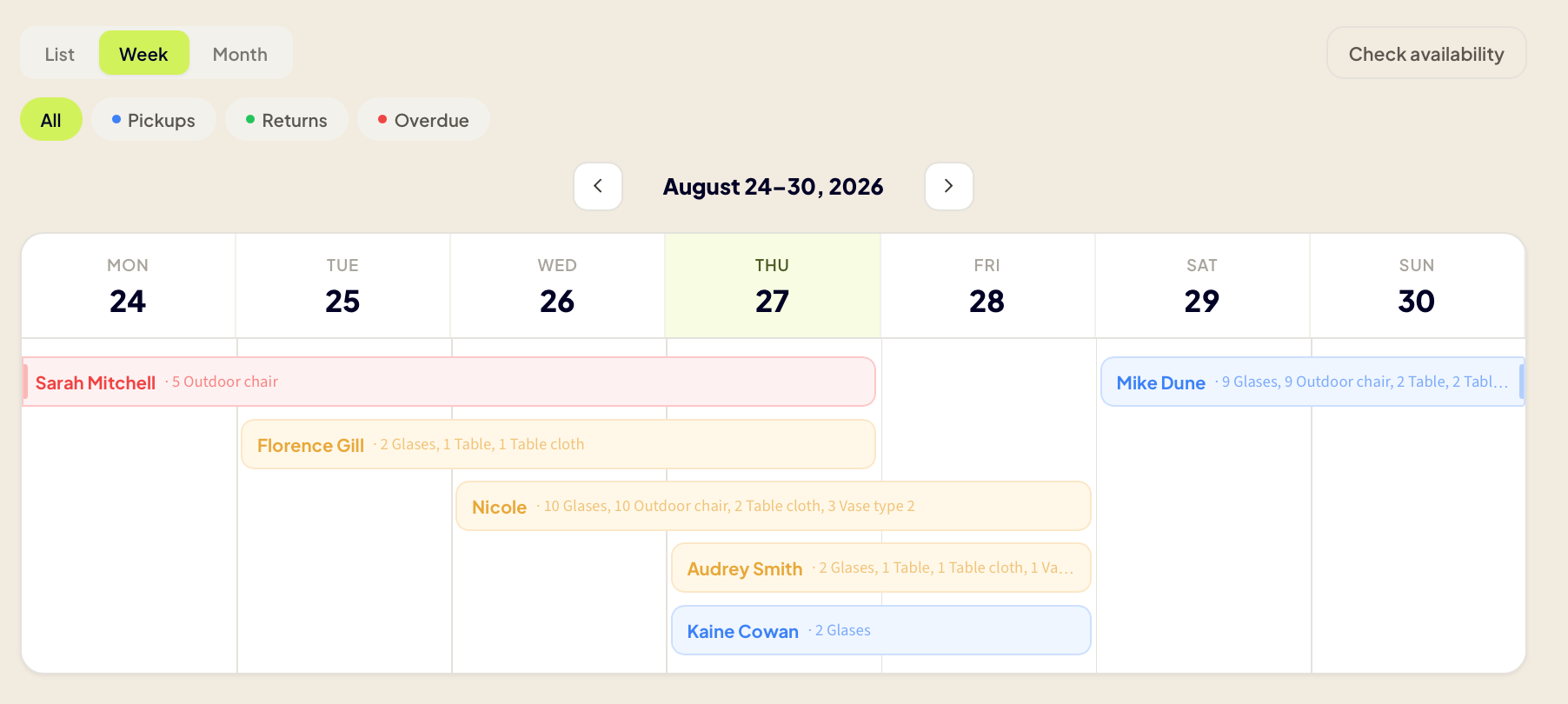
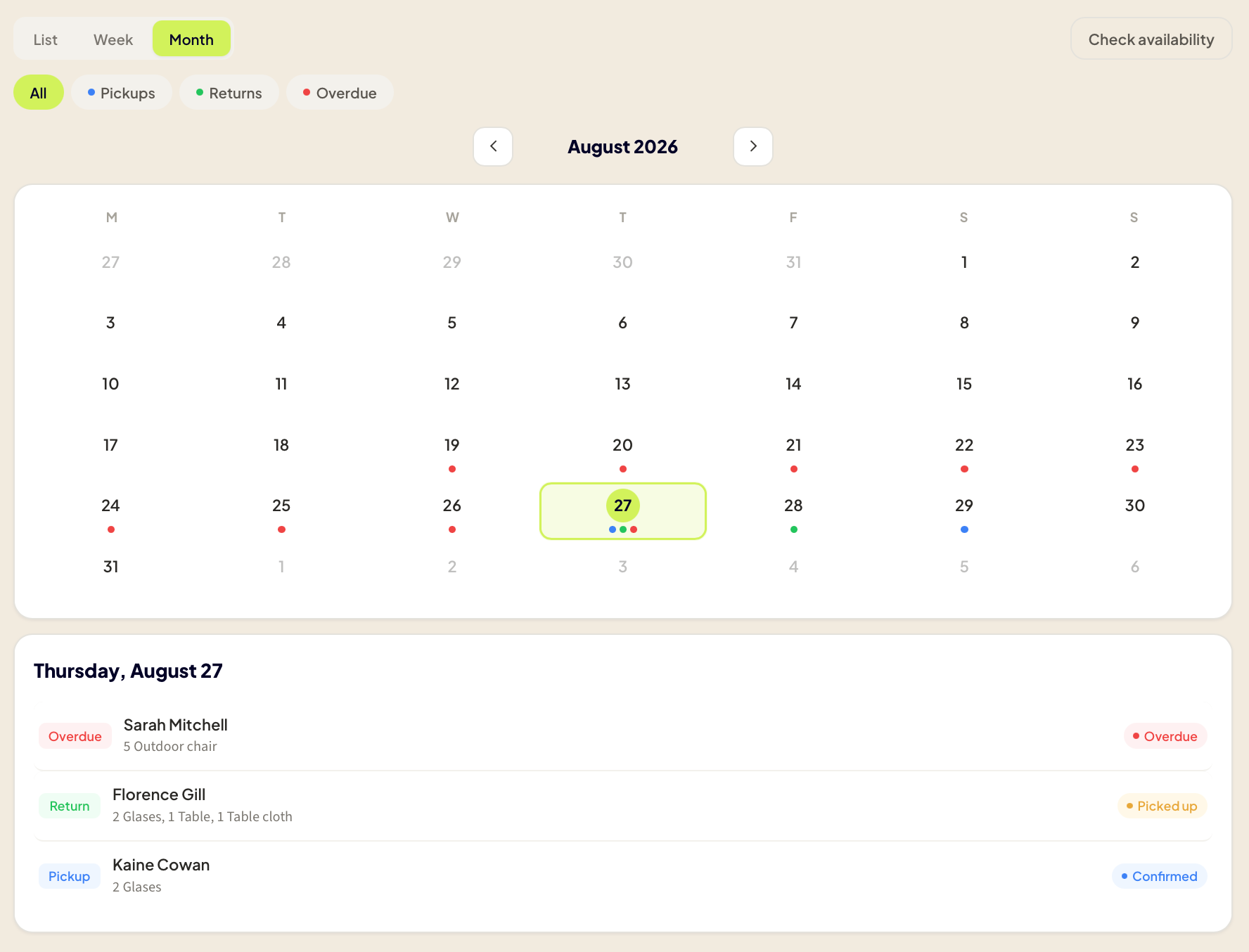
The calendar gives you the big picture. List view, week bar (horizontal blocks, good for spotting overlaps), or a full month grid. Every order appears as a colored block spanning its date range, color-coded by status: blue for confirmed, amber for picked up, red for overdue, green for returned.
There's also an availability check mode. Pick a date range and an item, and it tells you exactly how many units are free across every day in that window. When a customer calls and asks "do you have 15 chairs the weekend of the 20th?" you get the answer in seconds, while they're still on the phone.
Tracking condition, not just quantity
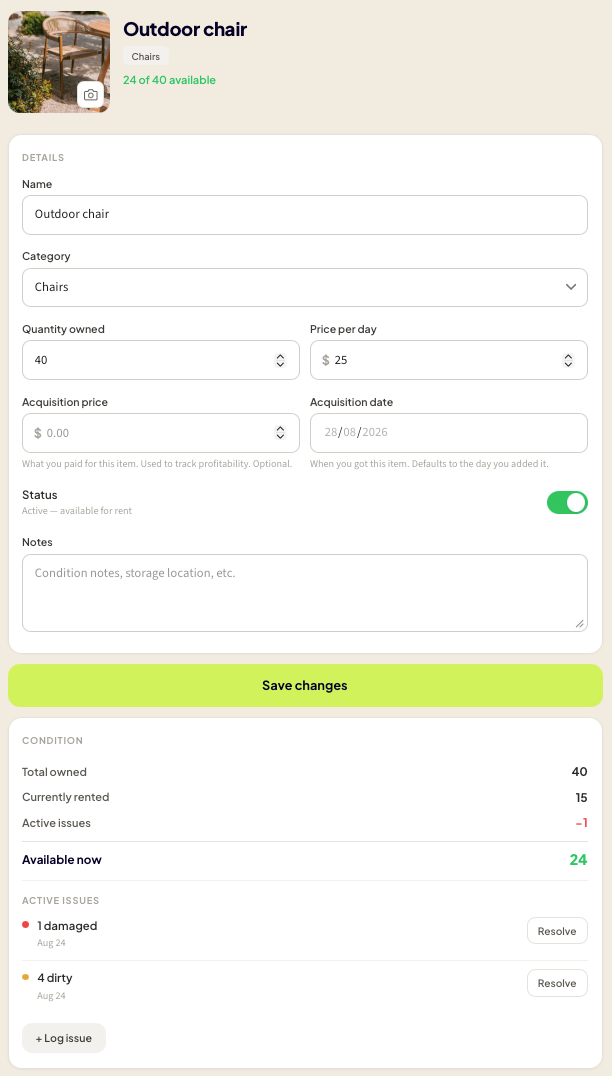
Most rental tracking tools tell you how many of an item you own and how many are rented out. Kiryo adds a third layer: how many are actually usable right now.
Every item has a Condition card that breaks down the numbers: total owned, currently rented, active issues, and available now. Blocking issues (damaged, missing, in repair) reduce your available quantity automatically. If 2 of your 20 chairs have wobbly legs, Kiryo knows you only have 18 to rent out. Informational issues (dirty, needs a check) are logged but don't affect availability, because a dirty chair can still go out after a wipe-down.
Each issue can include photos, notes, a link to the customer and order that caused it, and an optional repair cost. When you resolve it, the quantity goes back into your available pool. You don't need to track individual chair #7. The quantity-bucket approach gives you condition visibility without the overhead of serializing every unit.
Knowing what an item is actually worth
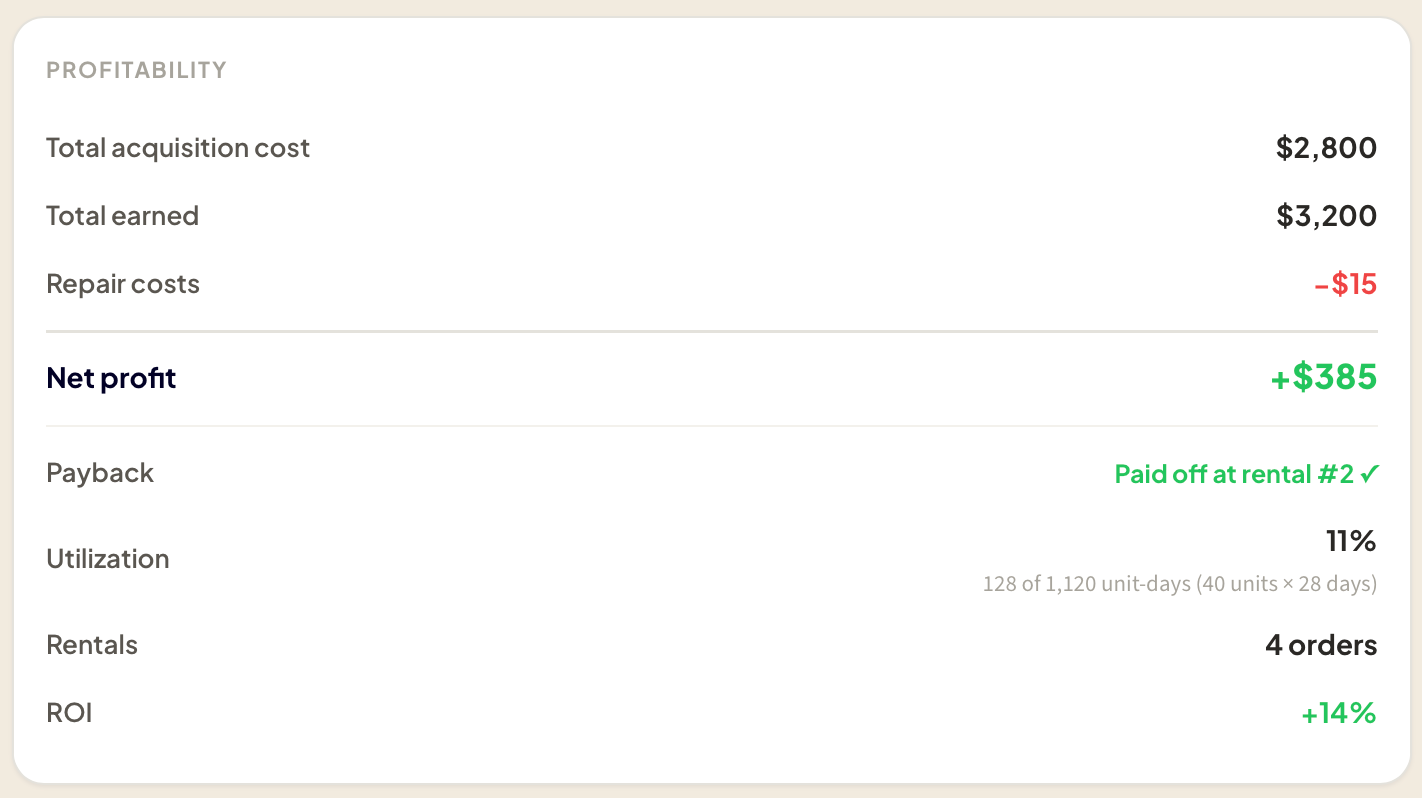
Directly below the Condition card sits the Profitability card. If you've entered what you paid for the item (optional, but worth doing), Kiryo calculates the rest: total revenue earned, repair costs subtracted, net profit, and a payback figure telling you at which rental the item paid for itself.
It also shows utilization (what percentage of the days you've owned it has it actually been out) and ROI. None of this requires accounting knowledge. The numbers answer one question: is this item making me money, or sitting in the warehouse eating costs? If you haven't entered an acquisition price, you still see revenue, rental count, and utilization. The profit figures appear once you fill in what you paid.
Knowing who owes what
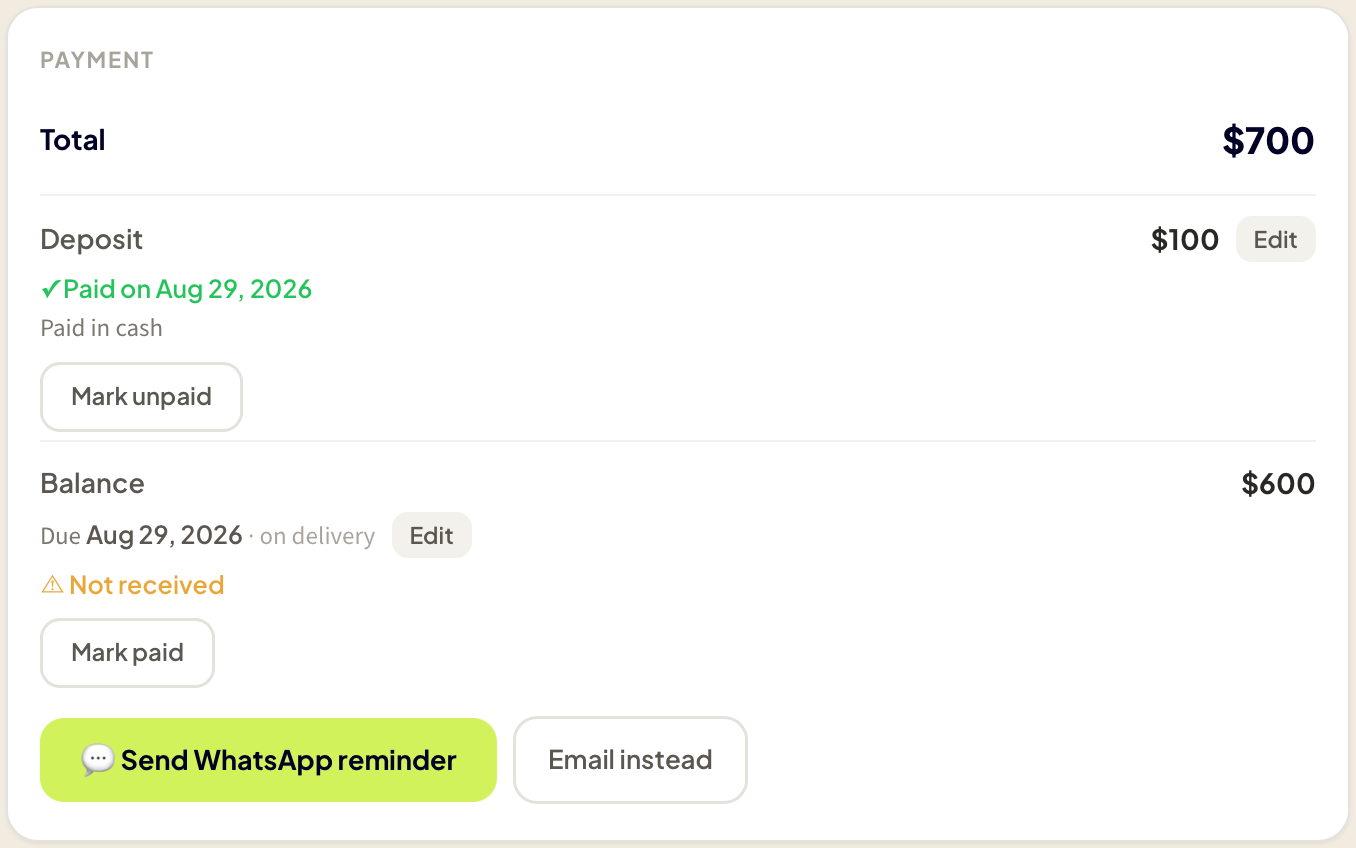
Kiryo tracks deposits and balances per order. It does not process payments. You still get paid however you already get paid: cash, transfer, whatever works. What Kiryo does is remember. Deposit amount, whether it's been received, when, and a free-text note ("paid in cash at pickup"). Same for the remaining balance.
On the dashboard, the outstanding balances card collects every unpaid balance across all orders, sorted by how overdue it is. When you need to follow up, a button sends a pre-filled WhatsApp reminder (or email, if the customer has no phone on file). The message opens in your app so you can review and edit before sending. Nothing is ever sent automatically.
The paperwork: documents and handover records
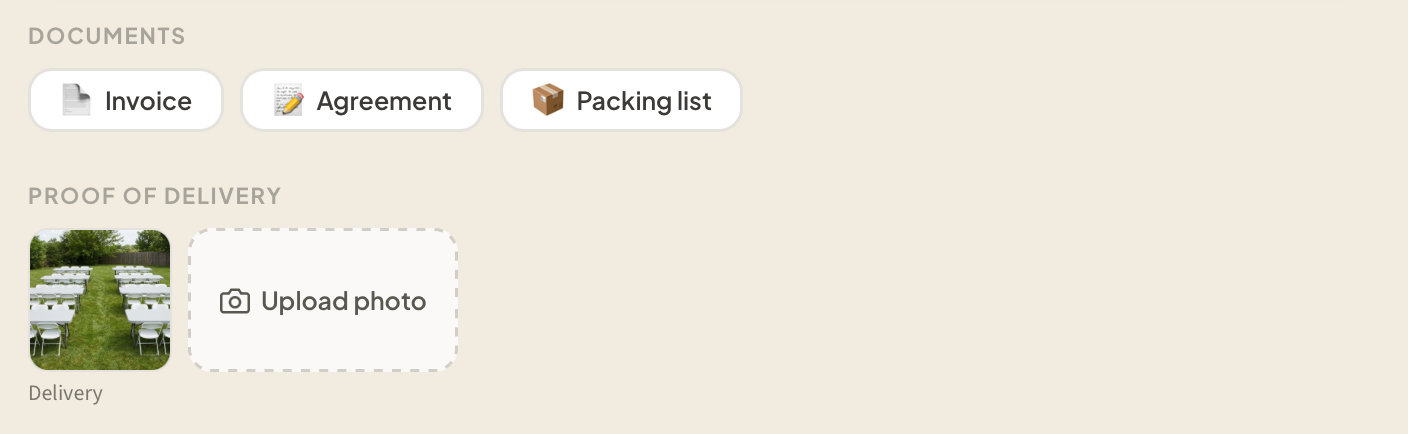
Every order can generate three PDF documents, filled in automatically from the order details and your business info (set once in Settings).
The invoice lists line items, totals, and payment status. The rental agreement adds your terms and conditions (customizable, with a sensible default template) and a signature block where the customer acknowledges what they're taking. The packing list is a checklist with large text, no prices, designed to be printed and carried while loading the van.
The handover workflow: print the agreement before the customer arrives, have them sign it at pickup, keep the signed copy or photograph it with your phone. It's not a digital signature pad. It's the paper-and-pen process most operators already use, with the document generated for you instead of typed up in Word every time.
When items come back, the return flow asks "Any issues?" If everything is fine, tap "No, all good" and the order closes. If something came back damaged or dirty, log the count, add notes and photos, and the issue links automatically to the customer and order. That photo of the stained tablecloth taken five seconds after unloading becomes your record if there's a dispute later.
Planning the truck run
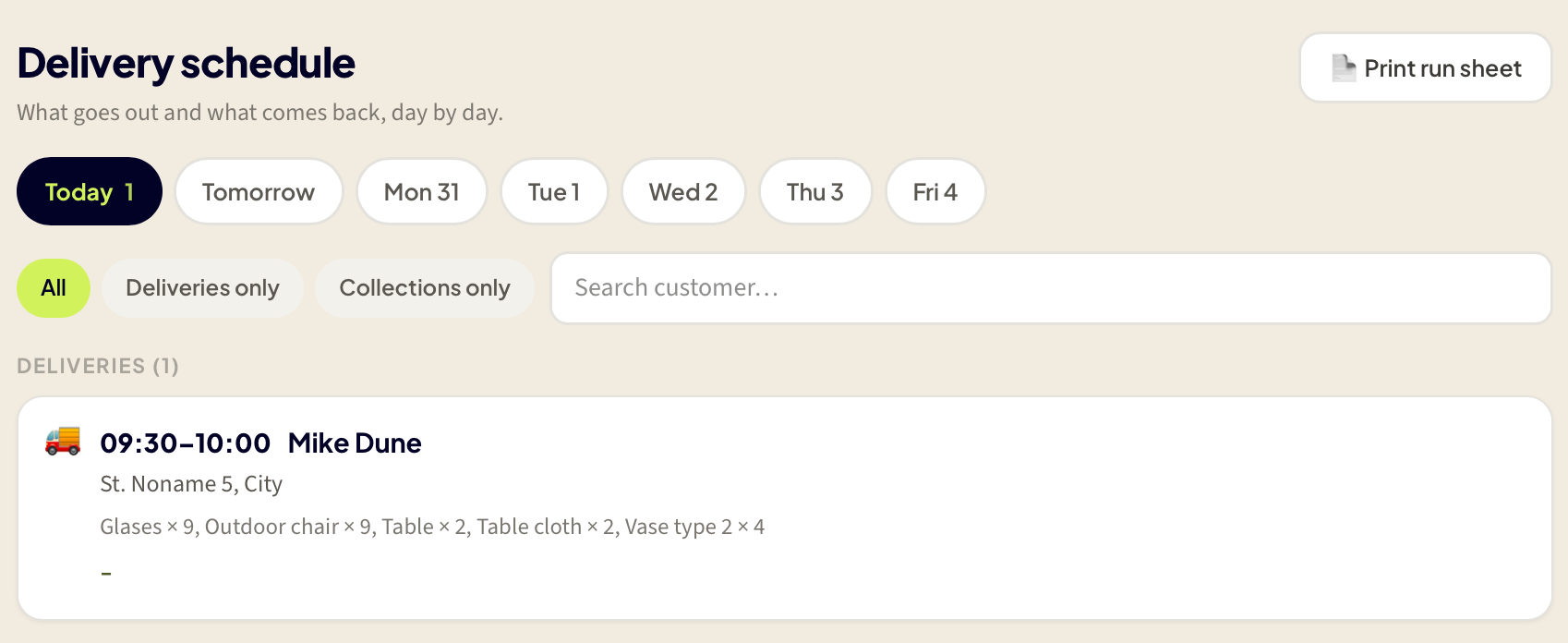
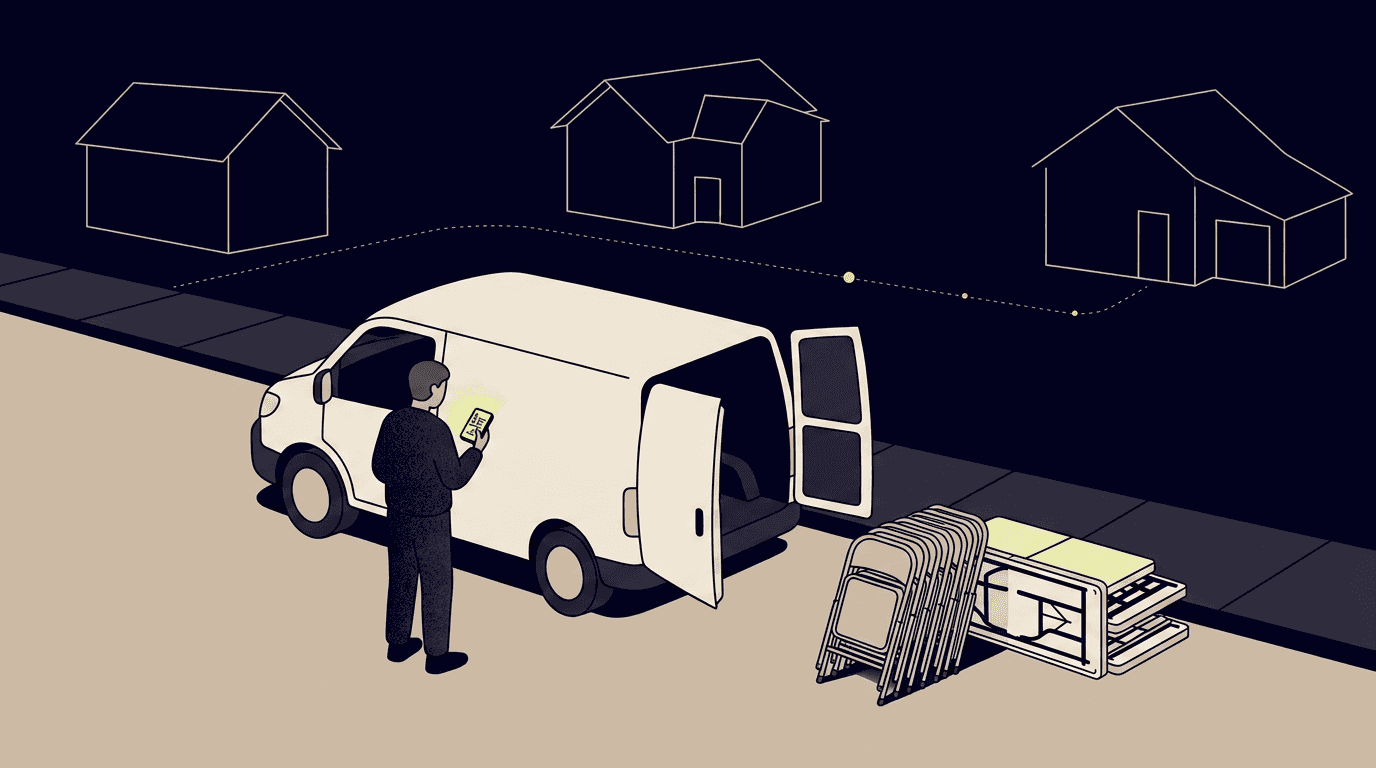
If you deliver equipment yourself, you know the routine: open each order, write down the address, figure out the time window. The Schedule page collects all of tomorrow's deliveries and collections into one list, sorted by time window, with addresses and item summaries visible at a glance.
A print button generates a one-page run sheet PDF: addresses, items, notes, no prices. Fold it, put it on the van dashboard, and go. Kiryo doesn't do route optimization or GPS tracking. It just makes sure you know what's going where and when, without opening six separate orders.
When a customer finds you online: the public catalogue
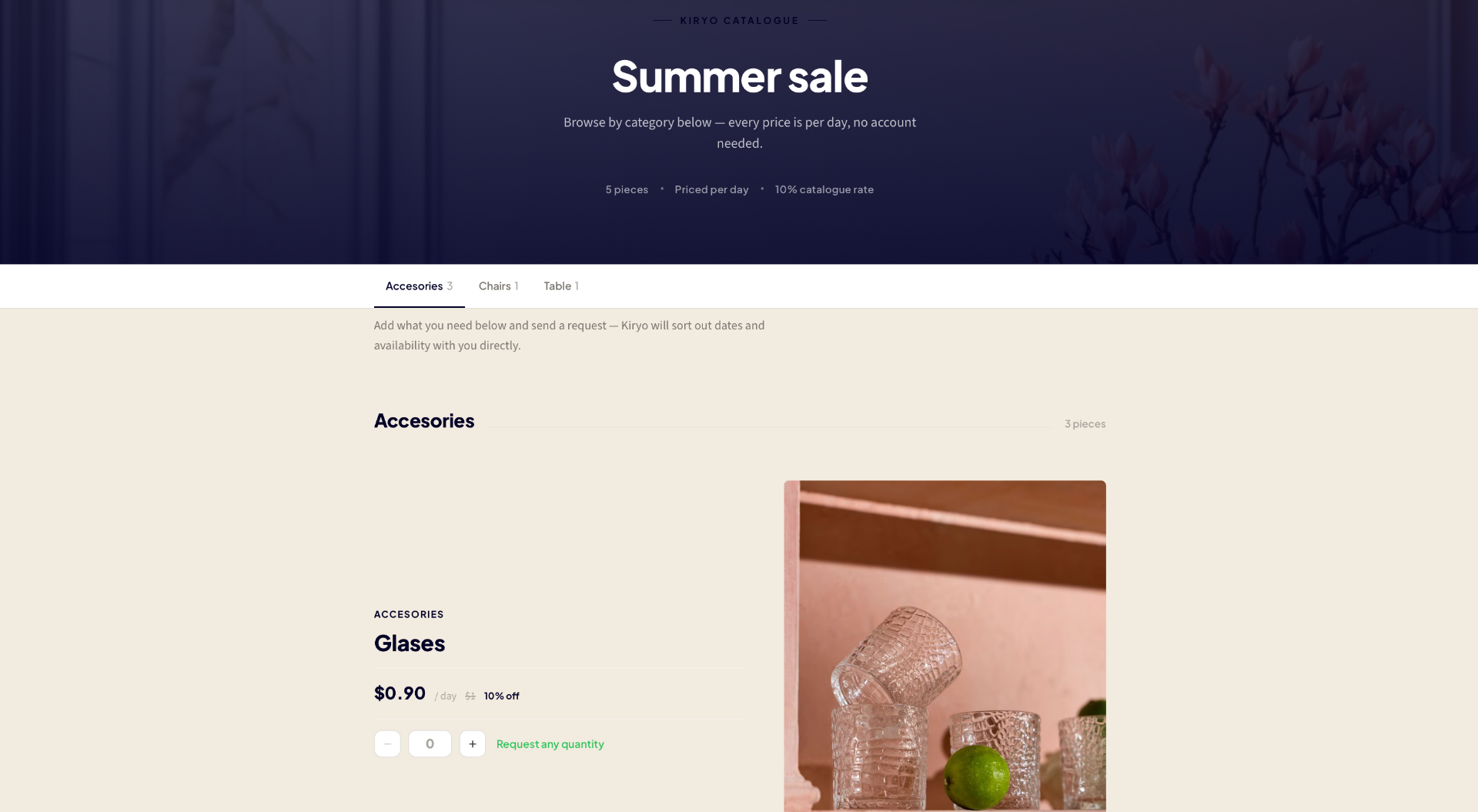
You can create a public catalogue page with a shareable link. It shows your items, photos, and prices. When a visitor picks a date range, the page shows real availability and lets them select items and quantities.
This is not a storefront. The visitor doesn't book or pay. They fill in their name and contact info and tap "Request via WhatsApp" or "Request via email." The request lands on your dashboard. You tap "Create order," and Kiryo opens a pre-filled order form with the customer's info, dates, and items, availability re-checked. One tap to confirm, and it's a real order.
No surprise bookings, no payment processing to configure, no portal to maintain. Just a page you can share in a WhatsApp message or an Instagram bio, turning inquiries into orders without retyping everything.
You don't need all of this on day one
Most operators start with two things: the order flow and the dashboard. That's enough to replace the spreadsheet and stop double-booking equipment. Condition tracking, profitability, payment tracking, delivery scheduling, and the public catalogue are there when you're ready, but none are required to get value on your first day.
If you rent out physical gear and you're tired of managing it across five tabs, Kiryo is free to try at kiryo.app. No credit card, no sales call. Sign in and add your first item.